Guide
Reviewing saved sessions
Go back to the traffic from an earlier capture run.
Every capture run is saved on your device automatically. Use saved sessions to go back to traffic you captured earlier, after the moment has passed.
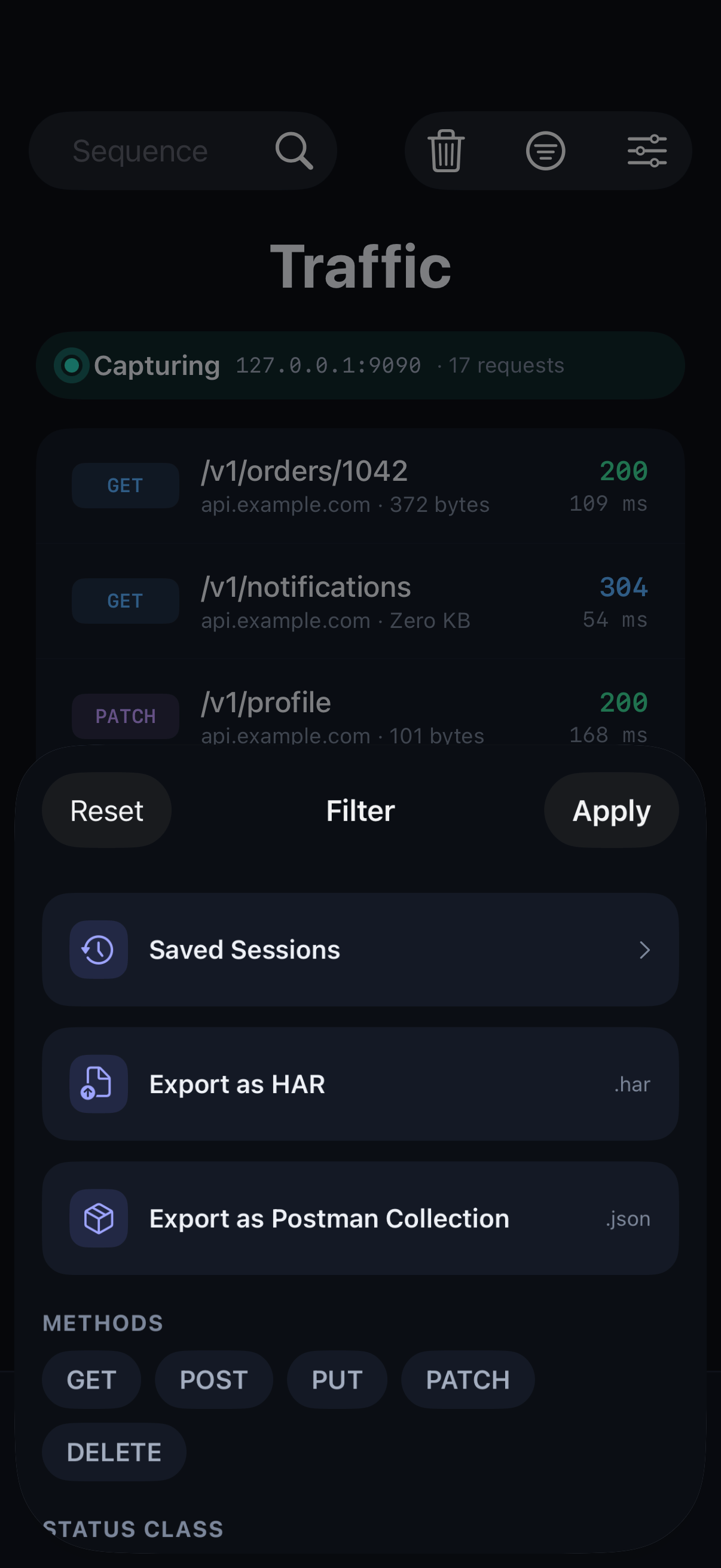
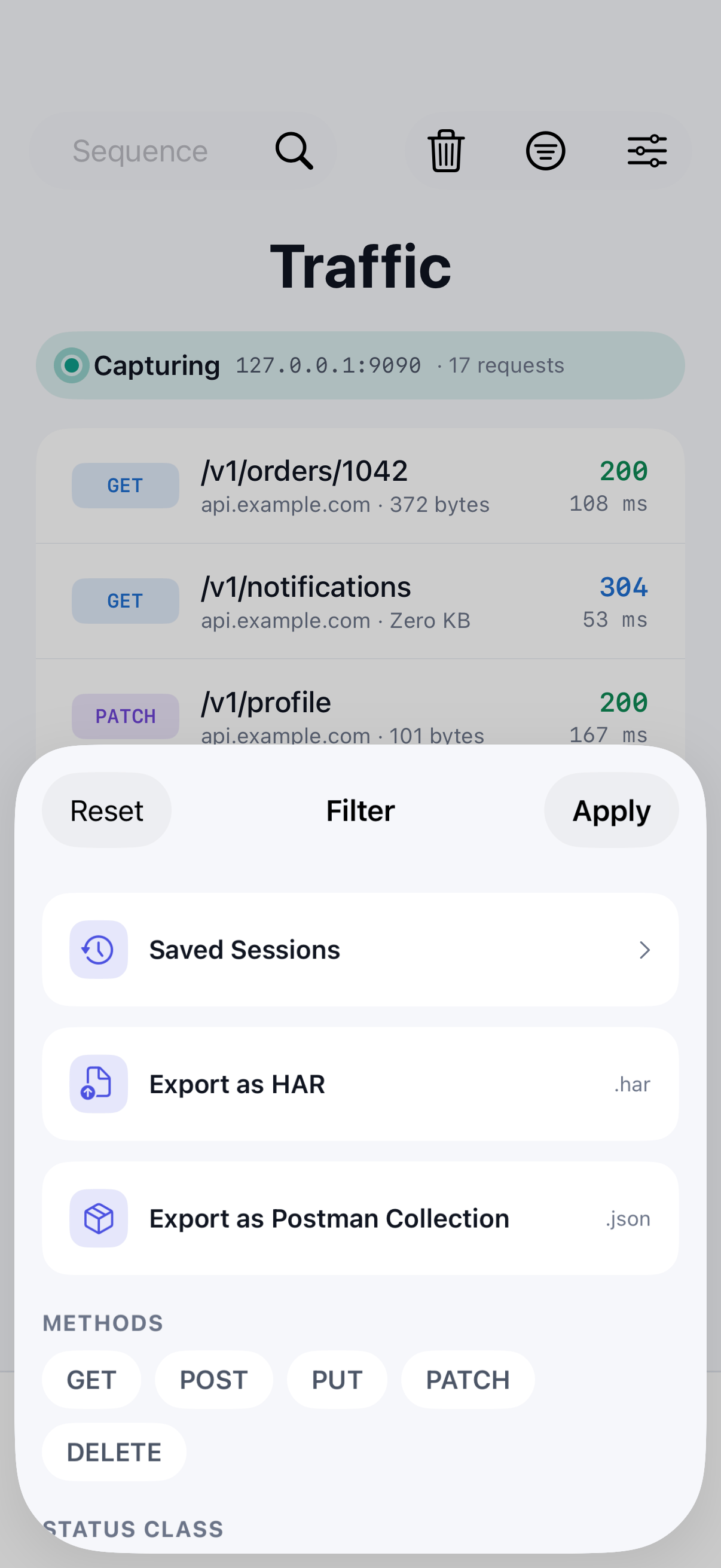
Step 01
Open saved sessions
On the Traffic tab, tap the filter icon and choose Saved Sessions.
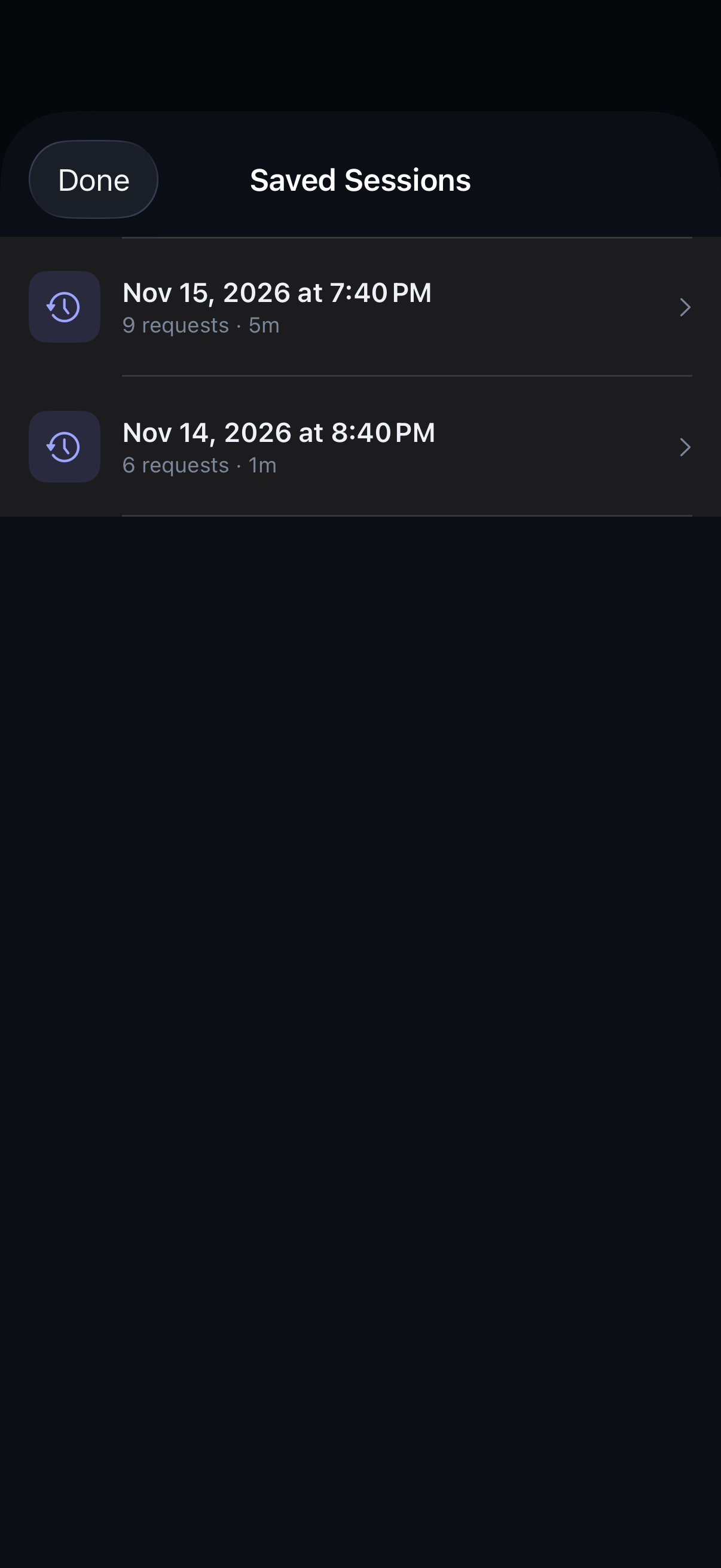
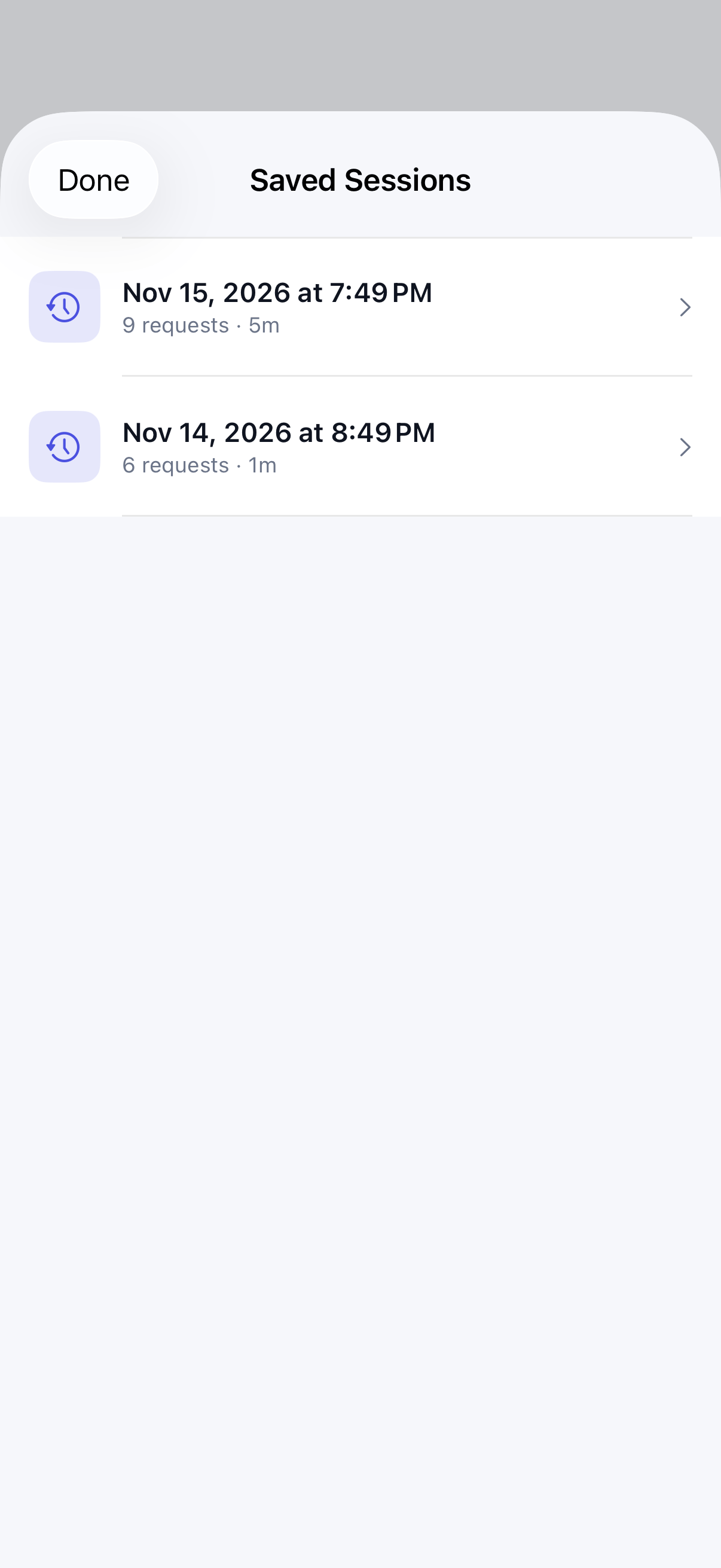
Step 02
Choose a session
Sessions are listed by when they were captured. Tap one to load it.
Step 03
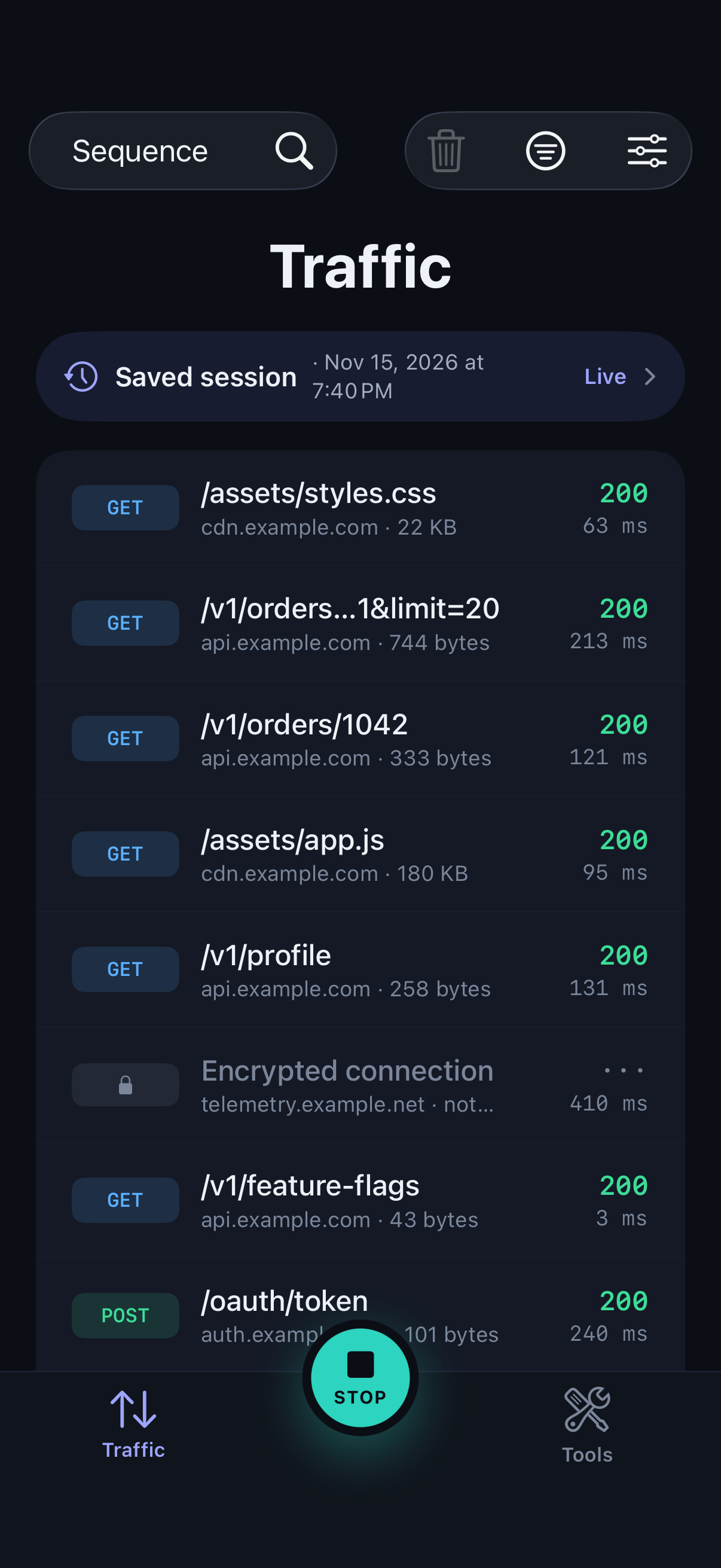
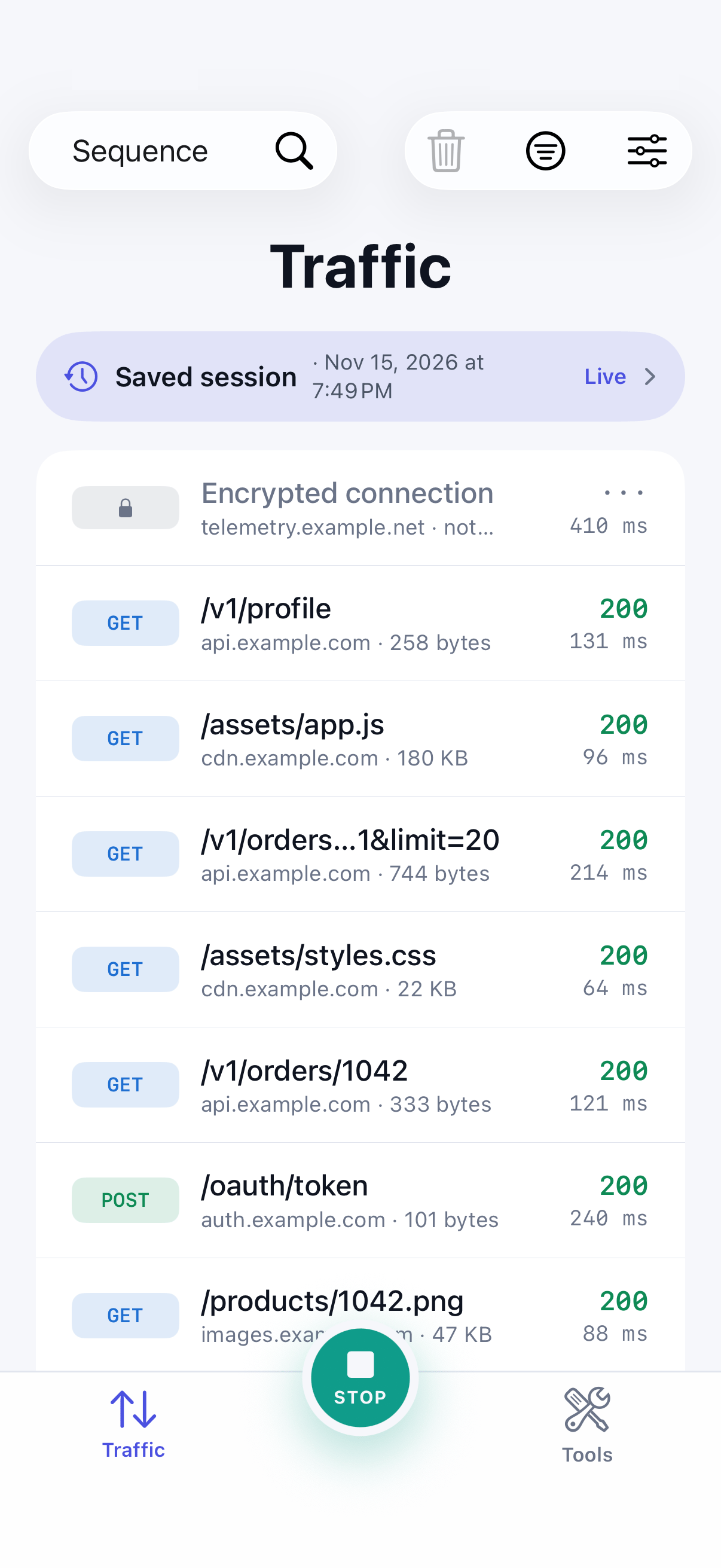
Inspect it like live traffic
The session's traffic opens in the traffic list. Group, filter and open requests exactly as you would during a live capture. A saved session is read-only. Tap Live to return to current traffic.