Guide
Editing and replaying a request
Change a captured request and send it again to see the real response.
Edit & Replay sends a modified copy of a captured request to the real server, so you can test a change to the request without touching your app's code.
Step 01
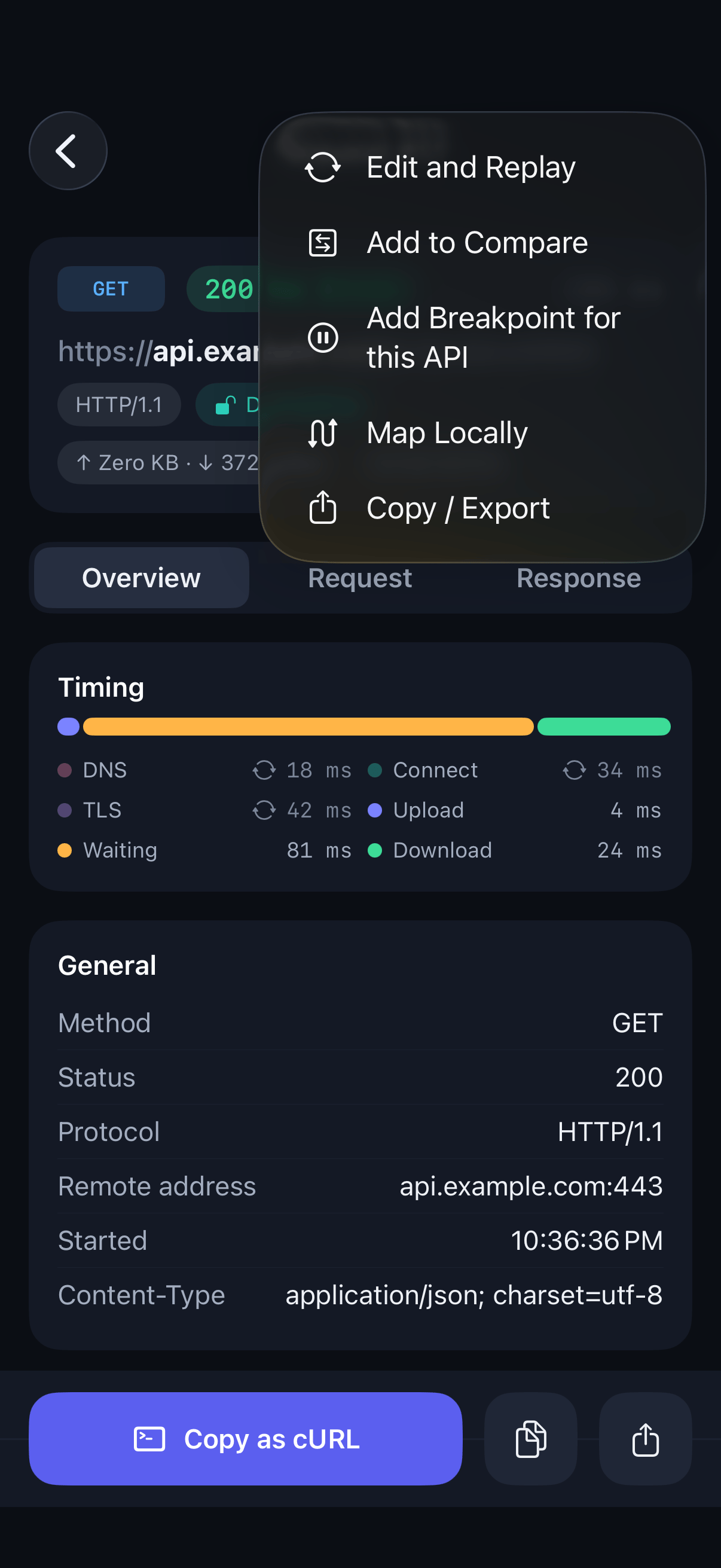
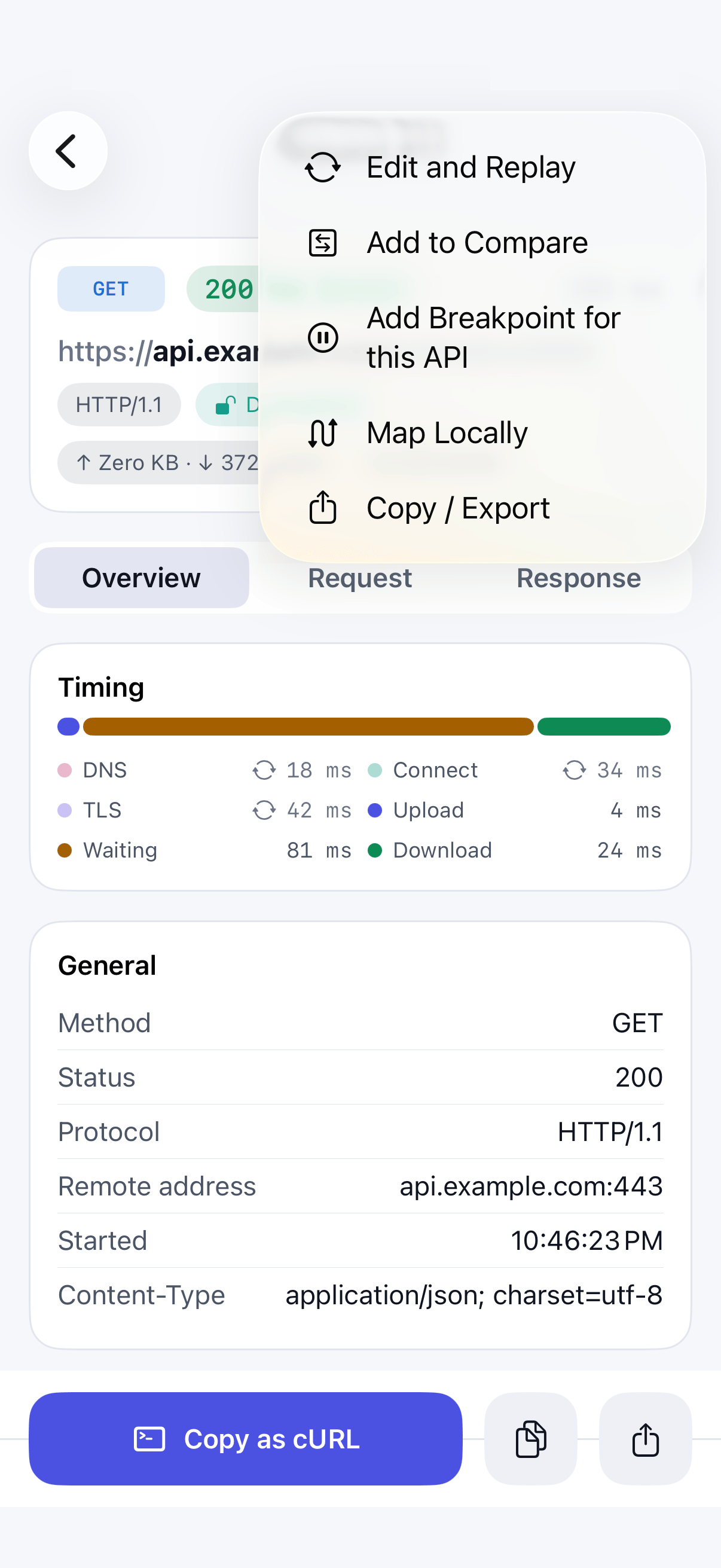
Open the request
Open the call you want to change, tap the … menu, and choose Edit and Replay.
Step 02
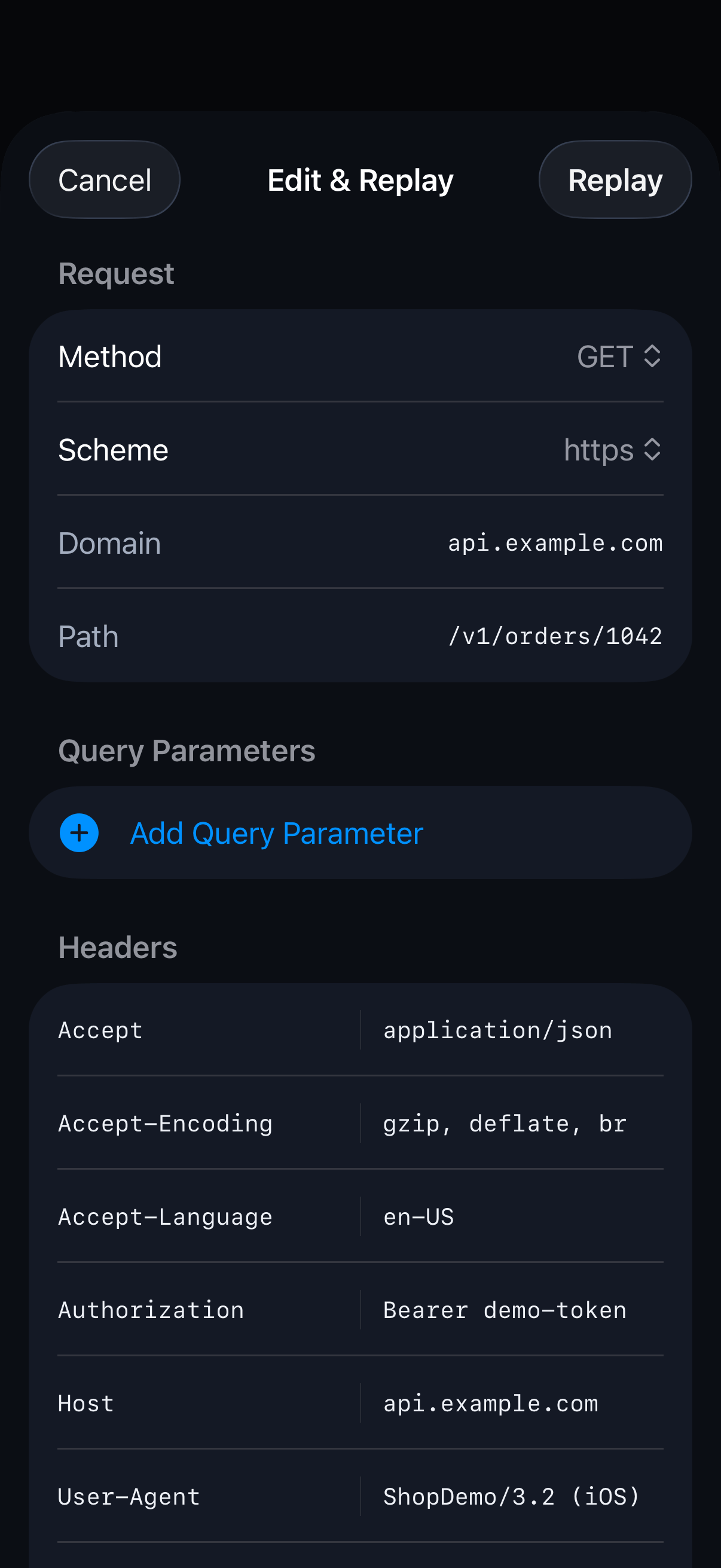
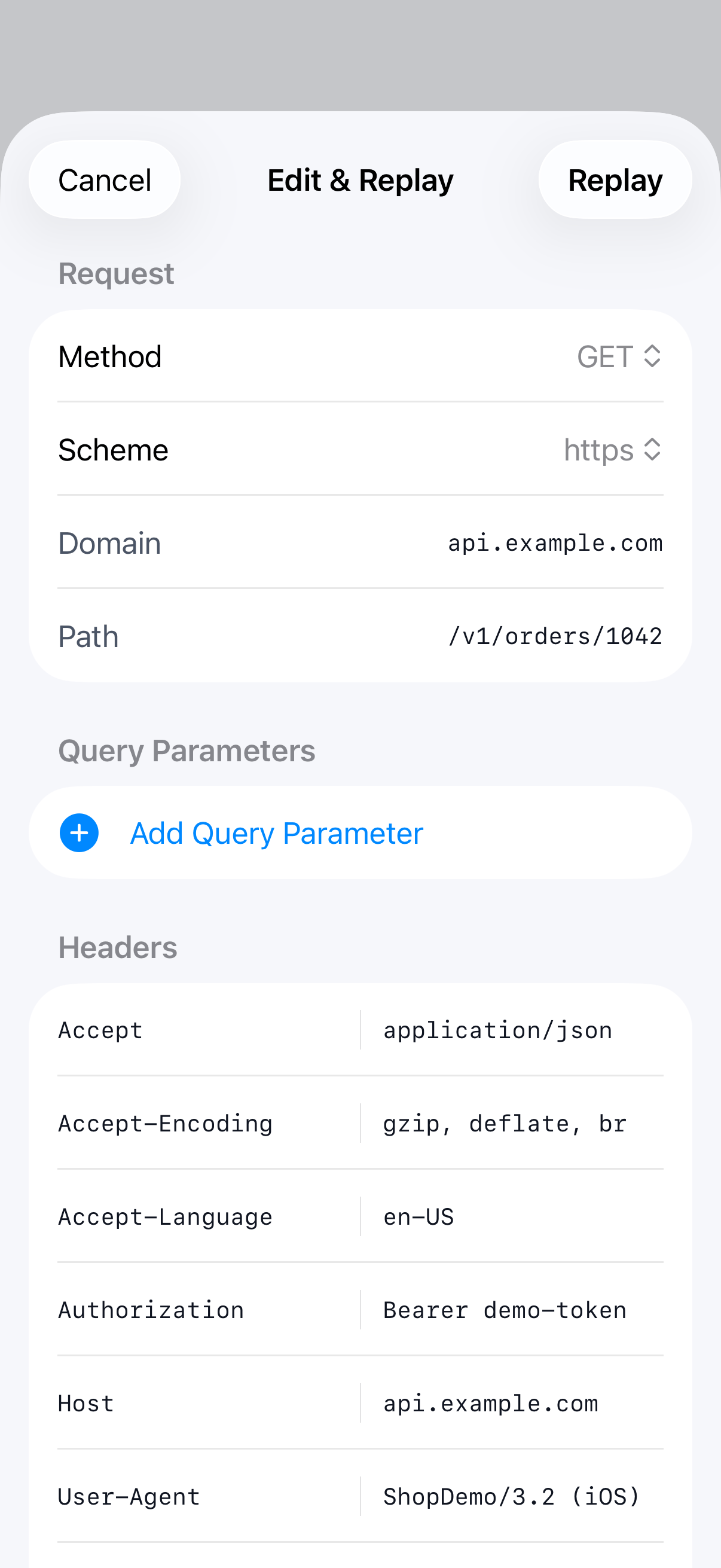
Make your change
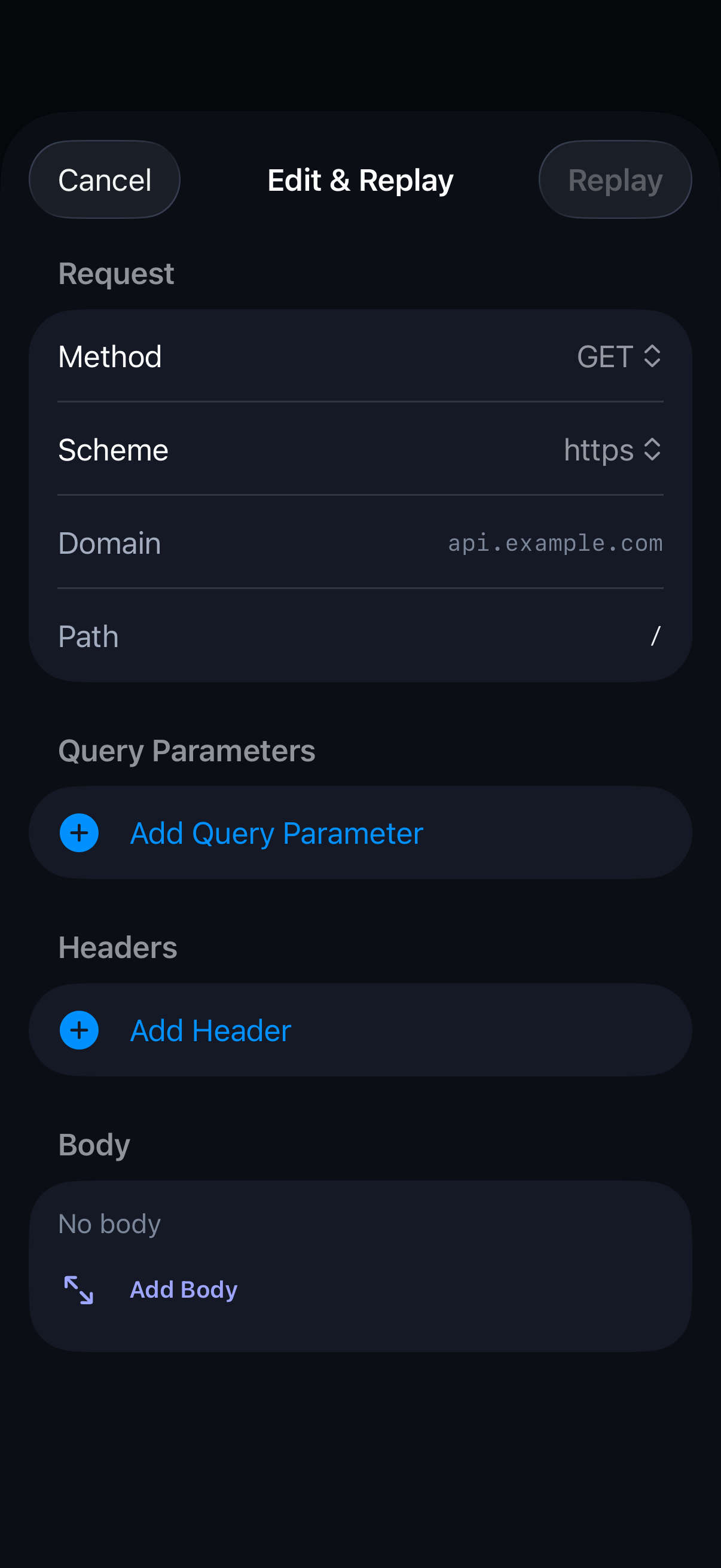
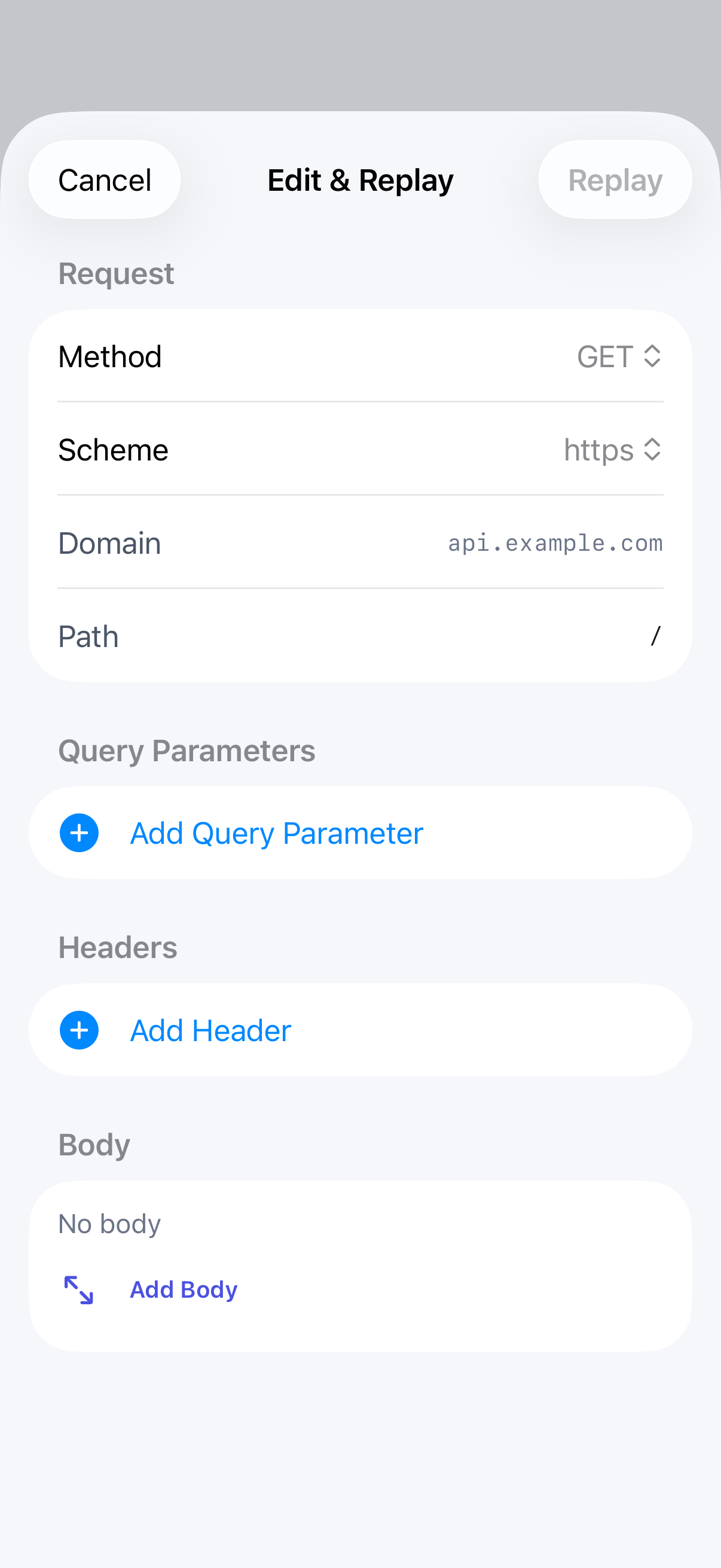
Edit the method, domain, path, query, headers or body. Change only what you're testing, so the result is easy to read.
Step 03
Send it
Tap Replay. The request goes to the server exactly as edited, and the real response comes back.
Step 04
Or start from a blank request
To send a request your app hasn't made yet, open Edit & Replay from the Tools tab and fill in the request yourself.
Step 05
Read the result
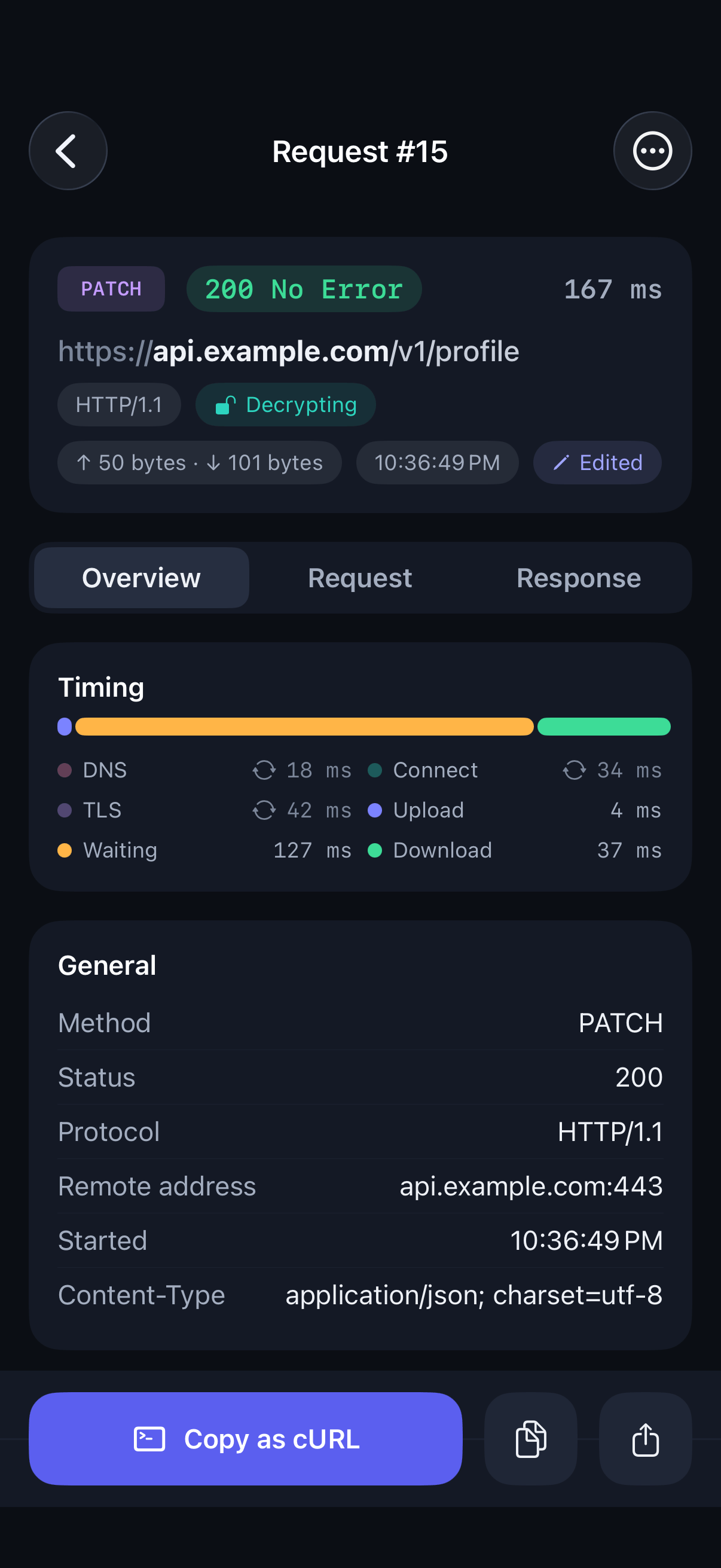
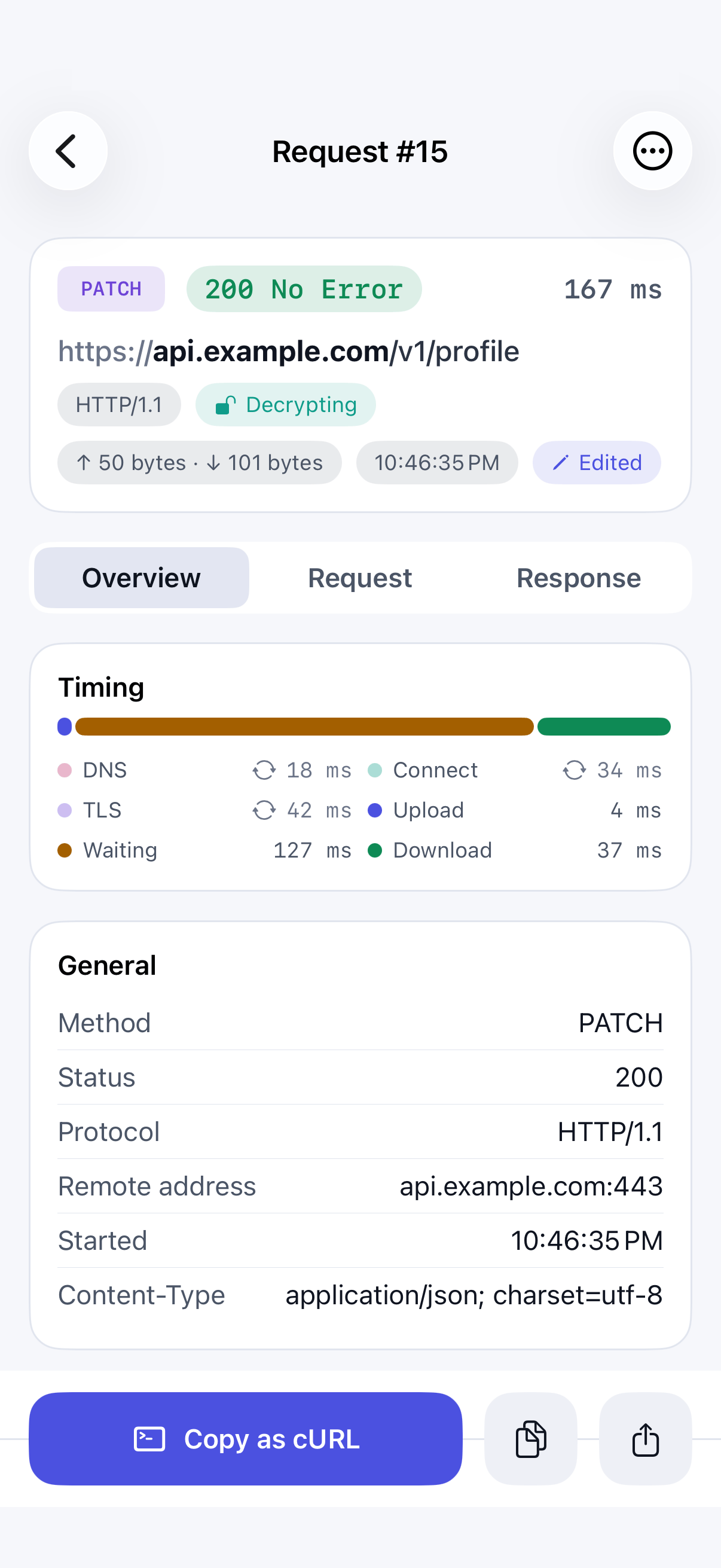
The replayed call appears in the traffic list with an Edited badge, so it's never mistaken for your app's own traffic. Open it to compare against the original.